

Create, send and track a quote
Turn a priced opportunity into a quote, send it as a secure link, and see when the customer views, accepts or declines it.
A quote is created from an opportunity and uses its products and prices. Every quote you have is listed under Opportunities, on the Quotes tab, with its customer, opportunity, amount, status and Valid until date.
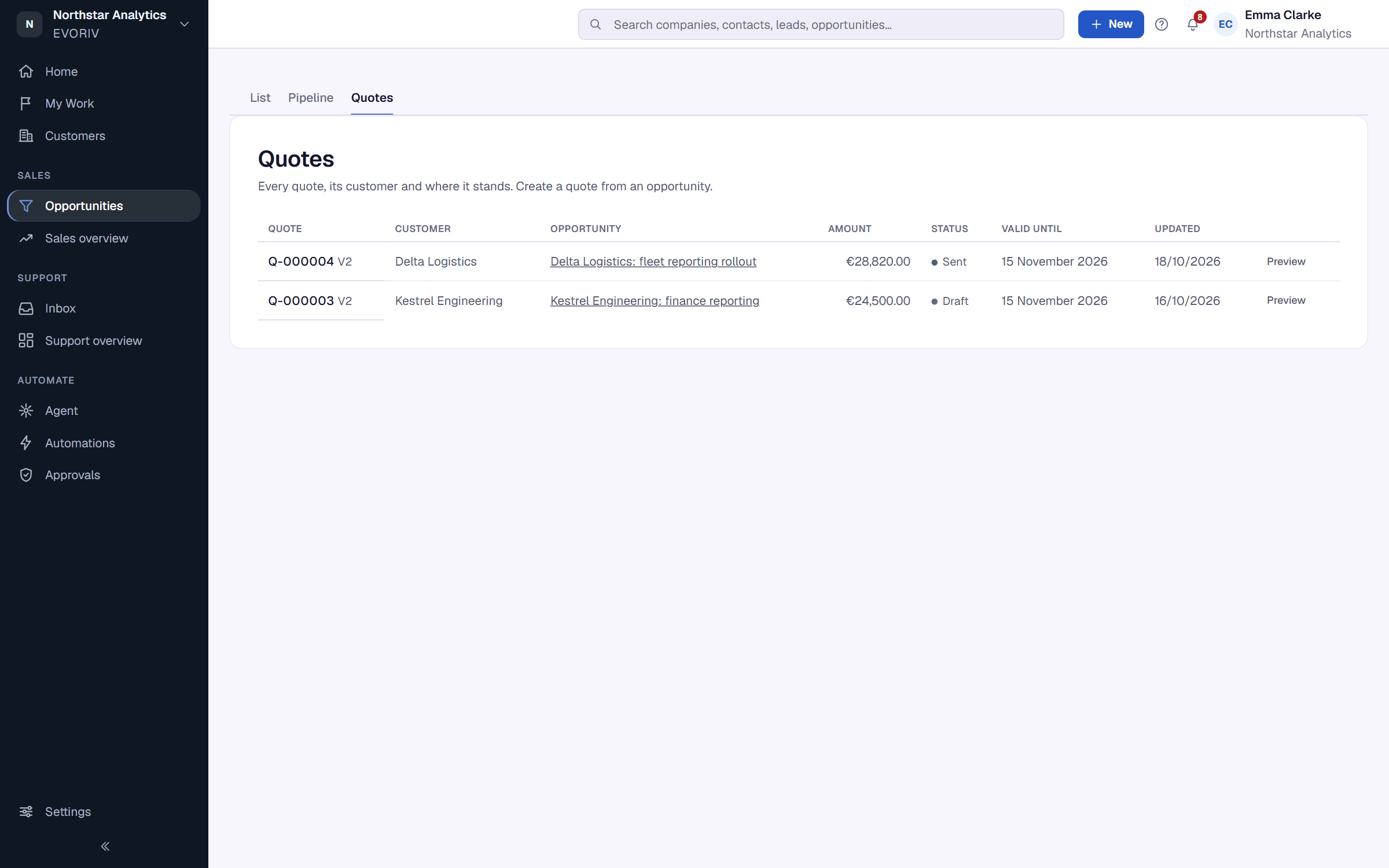
Create a quote
- Open the opportunity and price it from products. See Price an opportunity from products.
- Select Create quote under the products, or New quote in the quotes section of the opportunity.
- Check the content and the Preview. While the quote is a draft, Update from opportunity takes the opportunity's current products and prices.
Send it
- Under Send, choose the Send from address.
- Select Send quote. The customer receives a secure link to view the quote, accept it or decline it. Once sent, this version can't change.
- Select Download PDF if you also want a file.
The customer accepts on that page by typing their full name and email address and ticking the agreement. EVORIV records who accepted, when, and exactly which version they saw.
Statuses
- Draft: not sent yet.
- Sent and Viewed: waiting for the customer; Viewed means they opened it.
- Accepted or Declined: the customer decided.
- Replaced by a newer version: you sent a new version.
- Expired: the validity period passed.
When the customer answers by phone or email
Under Next step, select Customer accepted or Customer declined and confirm. This is marked as recorded by your team, not as the customer's own acceptance. To change a sent quote, select Edit quote (new version) or New version with current prices.