

Fields and record layouts
Add fields to companies, contacts, leads and opportunities, and arrange each record page with the layout builder, then publish it.
Open Settings, then under Sales select Fields & layouts. Only workspace admins can change fields and layouts. Choose the record you want to change, for example Company. Each record has two tabs: Information captured and Record layout.
Add information
- On Information captured, select Add information.
- Give it a name and choose a type: Short text, Long text, Whole number, Decimal number, Money, Percentage, Date, Date and time, Yes / no or Dropdown.
- Save it. A new field is available straight away; add it to the page on Record layout.
Design the record page
Record layout opens the record layout builder (Page Builder). The panel on the left has three groups: Fields, Components and App blocks. Build this page on the right explains the moves.
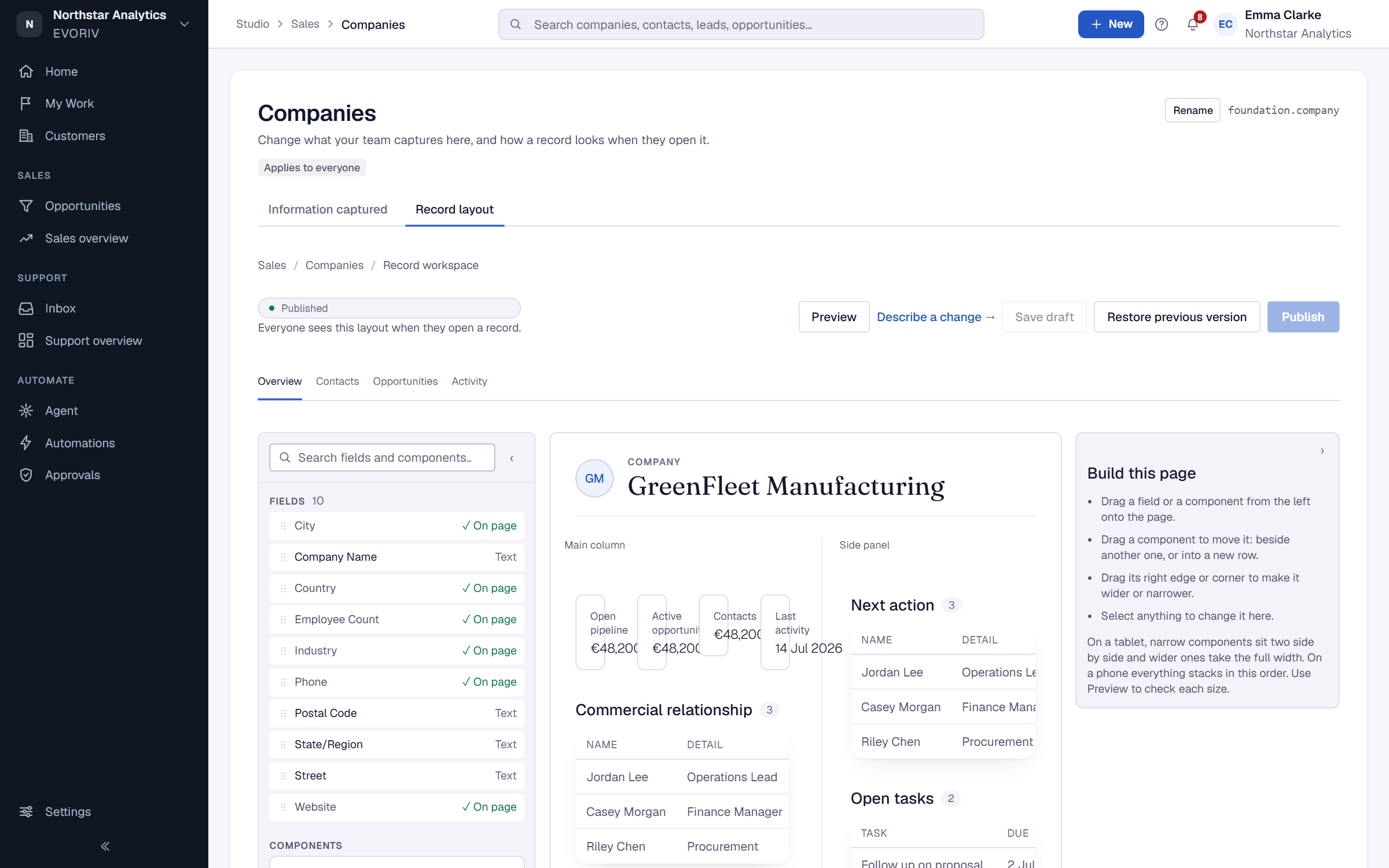
- Drag a field or a component onto the page.
- Drag a component to move it beside another one, or into a new row. Drag its right edge or corner to make it wider or narrower.
- Select anything to change it in the panel on the right.
- App blocks add what an App knows about the record, such as Customer Health, Latest NPS, Latest CSAT, Survey responses and Recent feedback.
The record header always stays at the top. On a tablet, narrow components sit side by side; on a phone everything stacks in order. Select Preview to check each size, and Exit preview to keep building.
Save and publish
The builder shows Unsaved changes, Unpublished changes or Published. Select Save draft to keep your work without anyone seeing it. Select Publish, then Yes, publish at Publish this layout to everyone? to make it live, or Keep as draft.