

Create a form
Build a form, choose where each answer is saved on the lead, and preview it.
Each form submission creates a lead, with its source and campaign attribution.
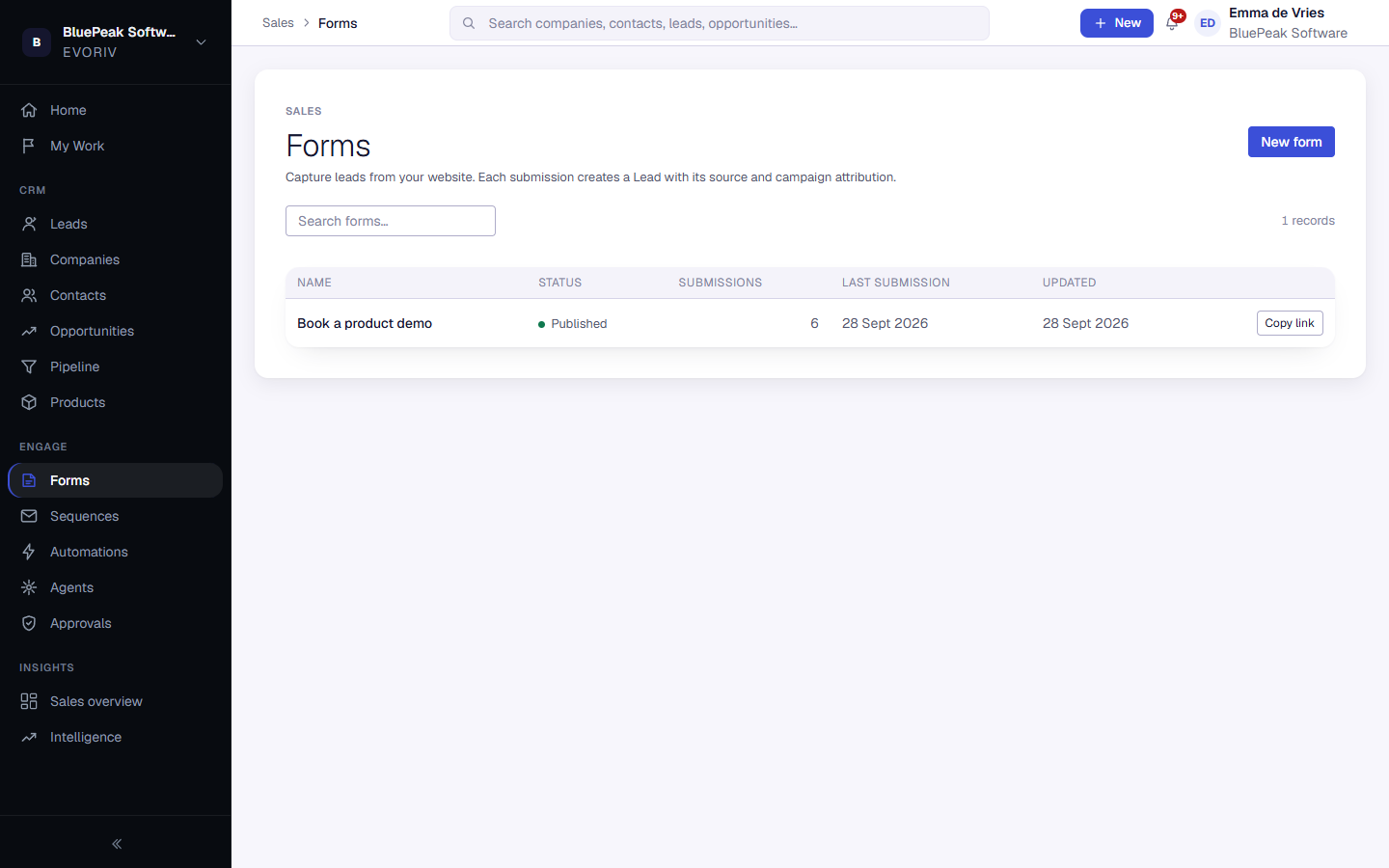
Build the form
- Open Forms and select New form.
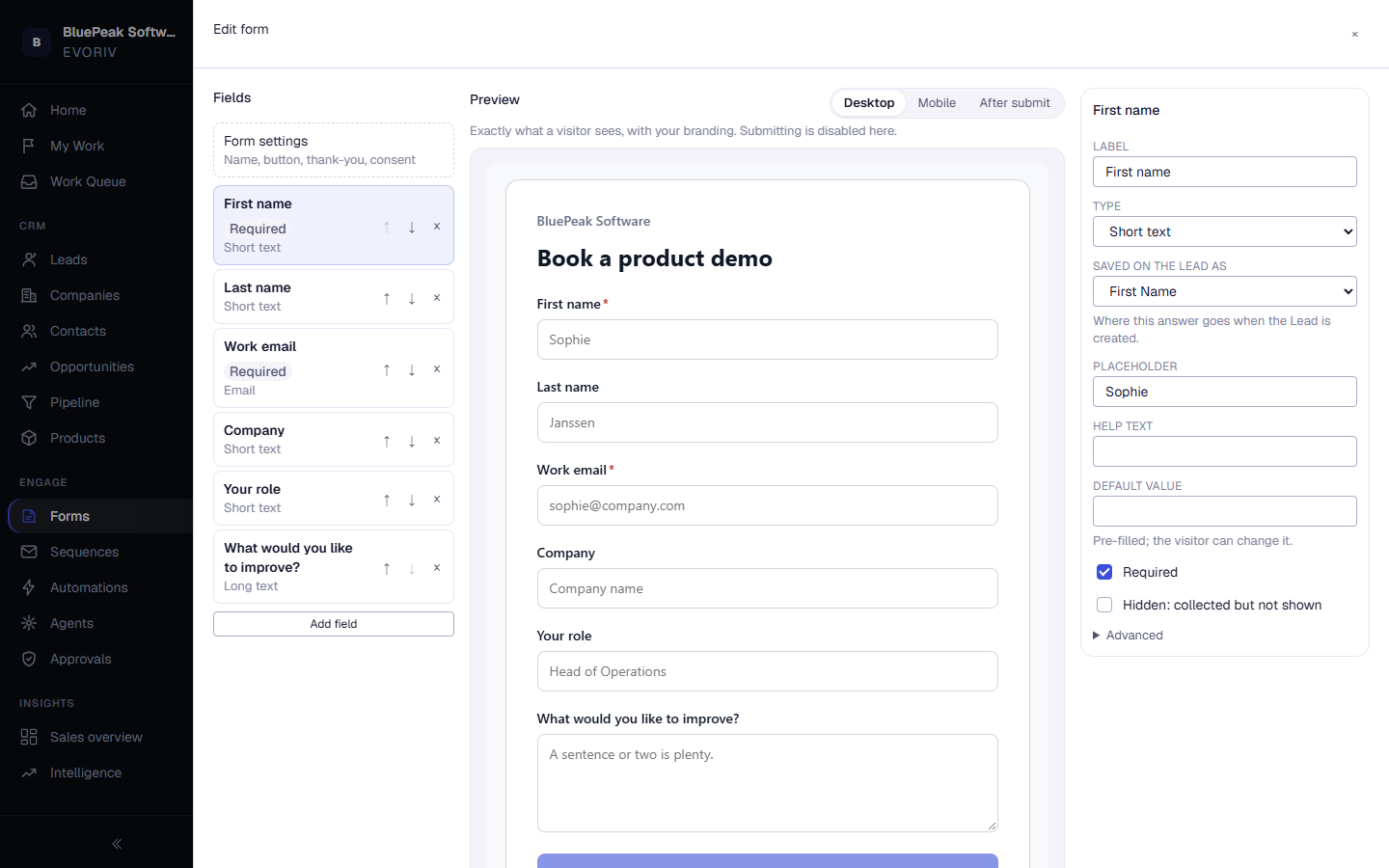
- Under Fields, select Add field for each question.
- For each field, set the Label, the Type and where it is Saved on the Lead as. Mark it Required if you need it.
- Use the arrows to change the order.
- Under Form settings, set the Form name, Button text and Thank-you message.
- Select Create form.
Field types are Short text, Long text, Email, Phone, Website and Dropdown. A field can also be Hidden: collected but not shown, which is useful for campaign details.
Preview
The preview shows exactly what a visitor sees, with your branding, on Desktop and Mobile, and After submit. Submitting is disabled in the preview.
In Form settings you can also send visitors to a page of your own after they submit, add consent text that visitors must agree to, and switch Accepting submissions off.